


Importing Meta Ads Cost Data into GA4
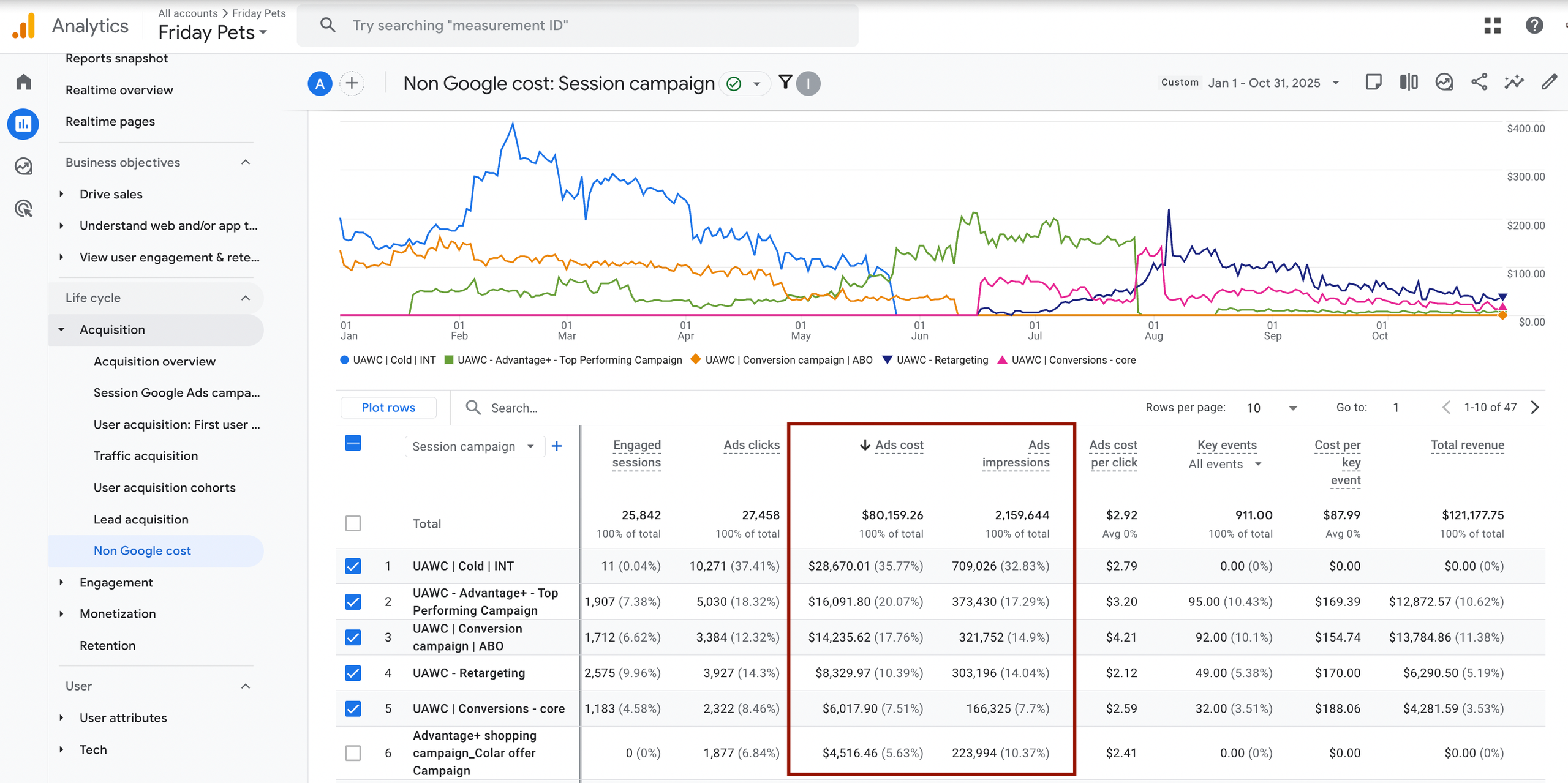
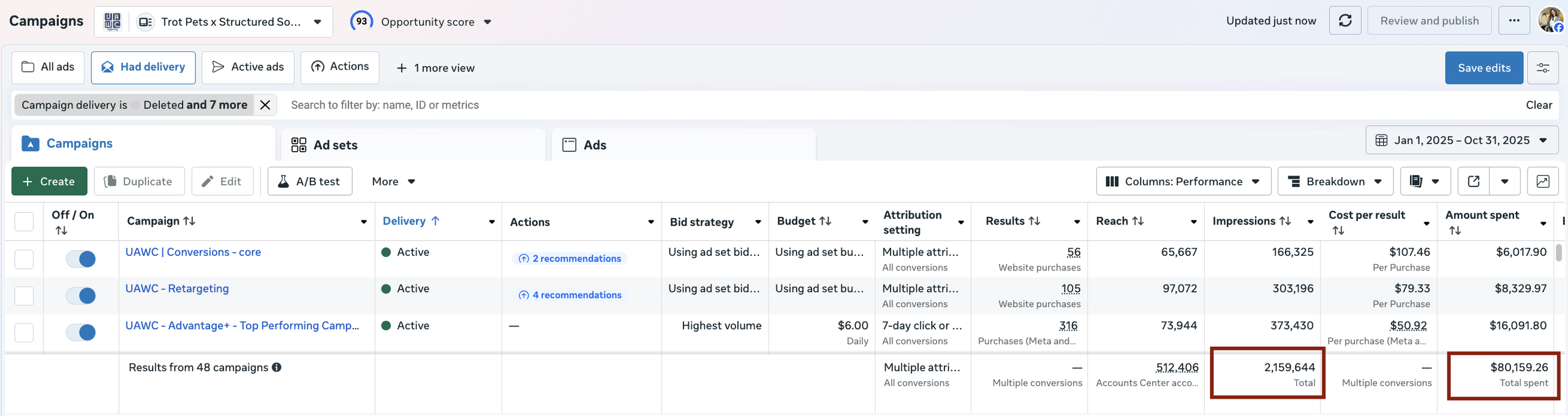
We connected Meta Ads spend directly to GA4 so the team could see cost, revenue, and ROAS in one place. No more spreadsheets or manual reporting.
Problem
Trot Pets was running Meta ads and tracking results in GA4, but the cost data wasn’t being imported automatically. To solve this visibility gap and centralize performance data, we implemented Google Analytics 4 setup & optimization with proper cost data integration.
To understand profitability, the team had to manually export reports, match data in spreadsheets, and update numbers every time they reviewed performance.
This slowed decision-making and made it difficult to quickly optimize campaigns.
How We Solved It
We connected Meta spend directly to GA4 and made sure GA4 could match that spend to the right traffic and conversions. This setup was supported by Google Tag Manager services, ensuring clean UTM mapping and reliable event attribution across Meta traffic.
The goal: one place to see cost, revenue, and ROAS without manual work.
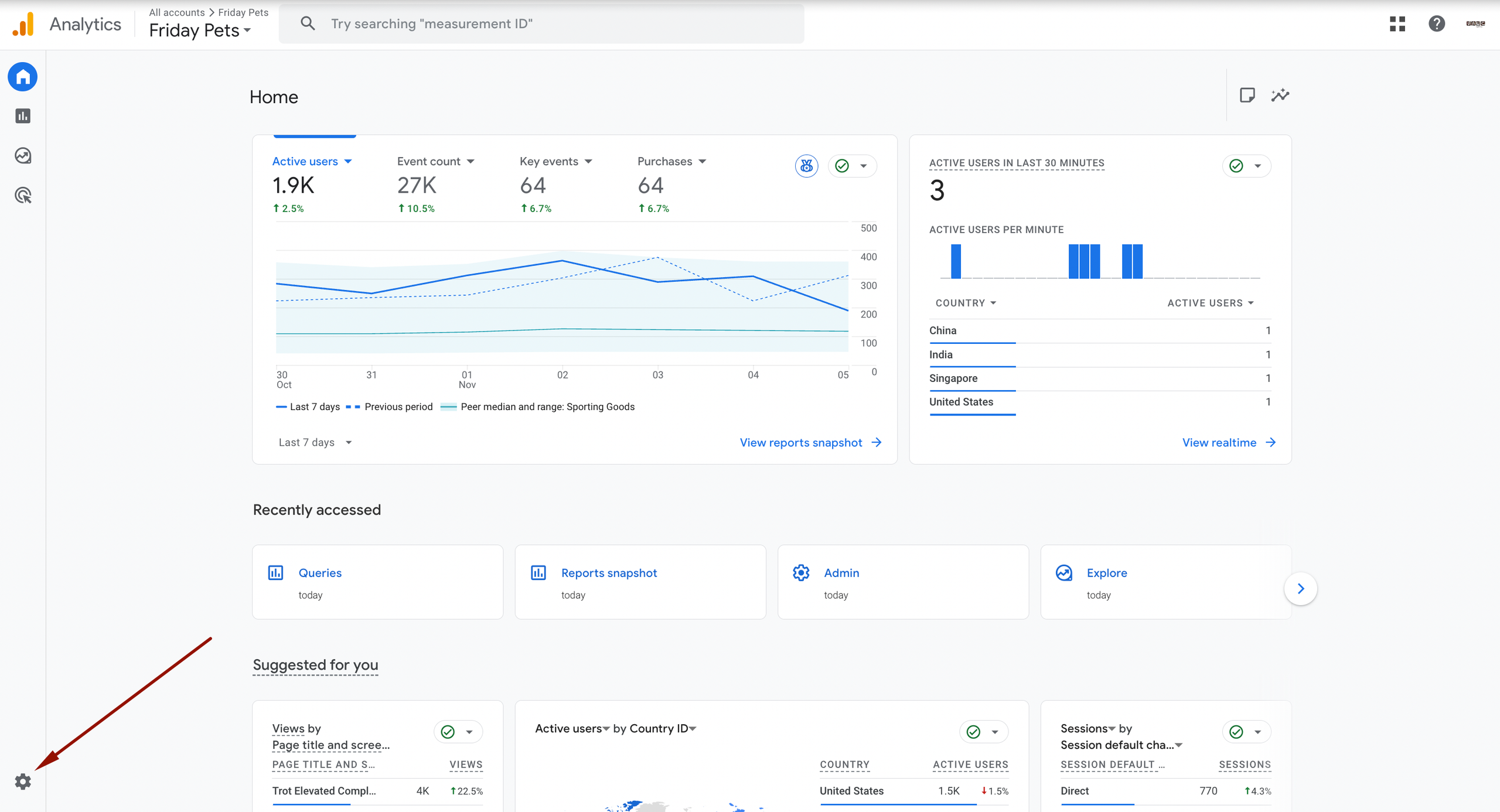
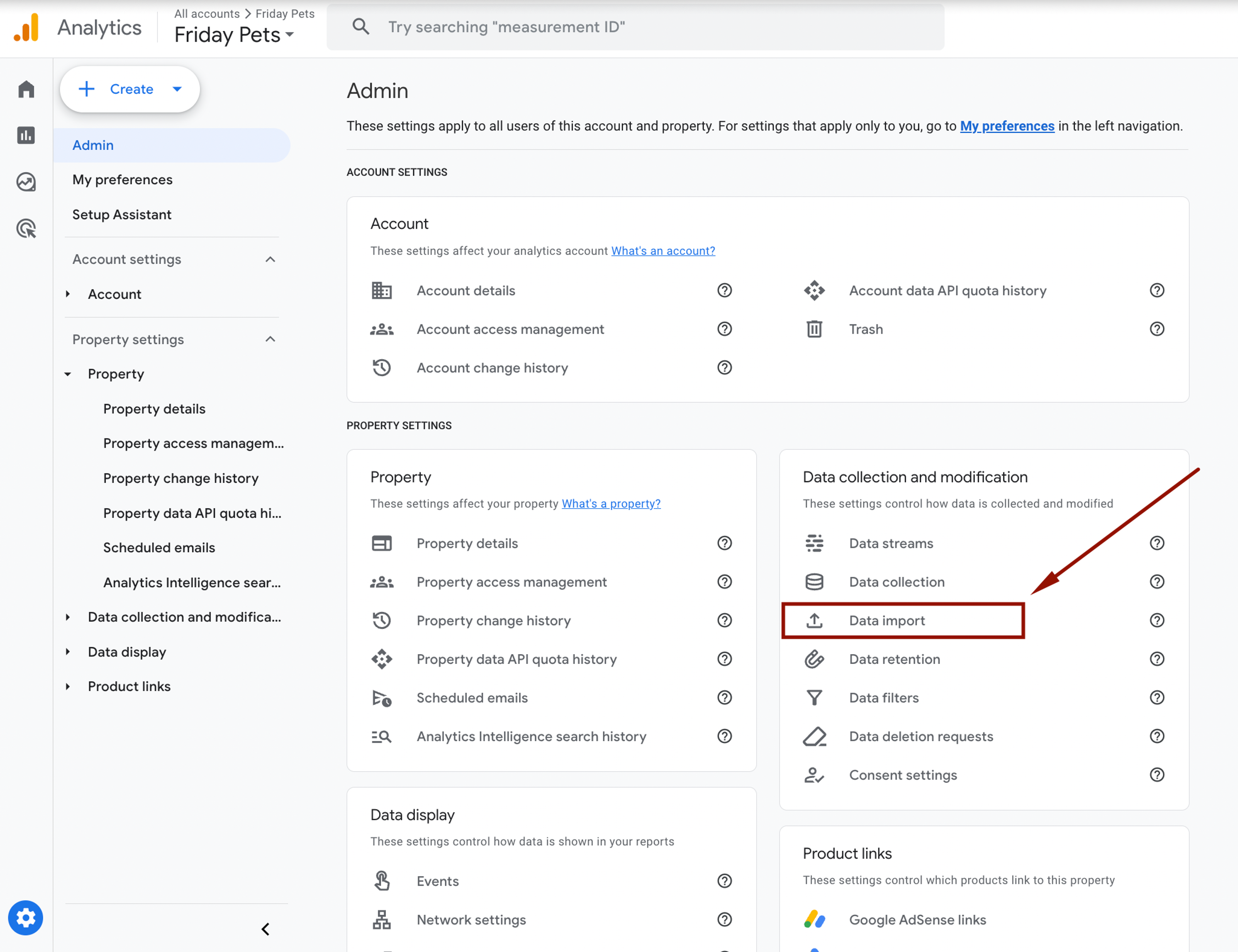
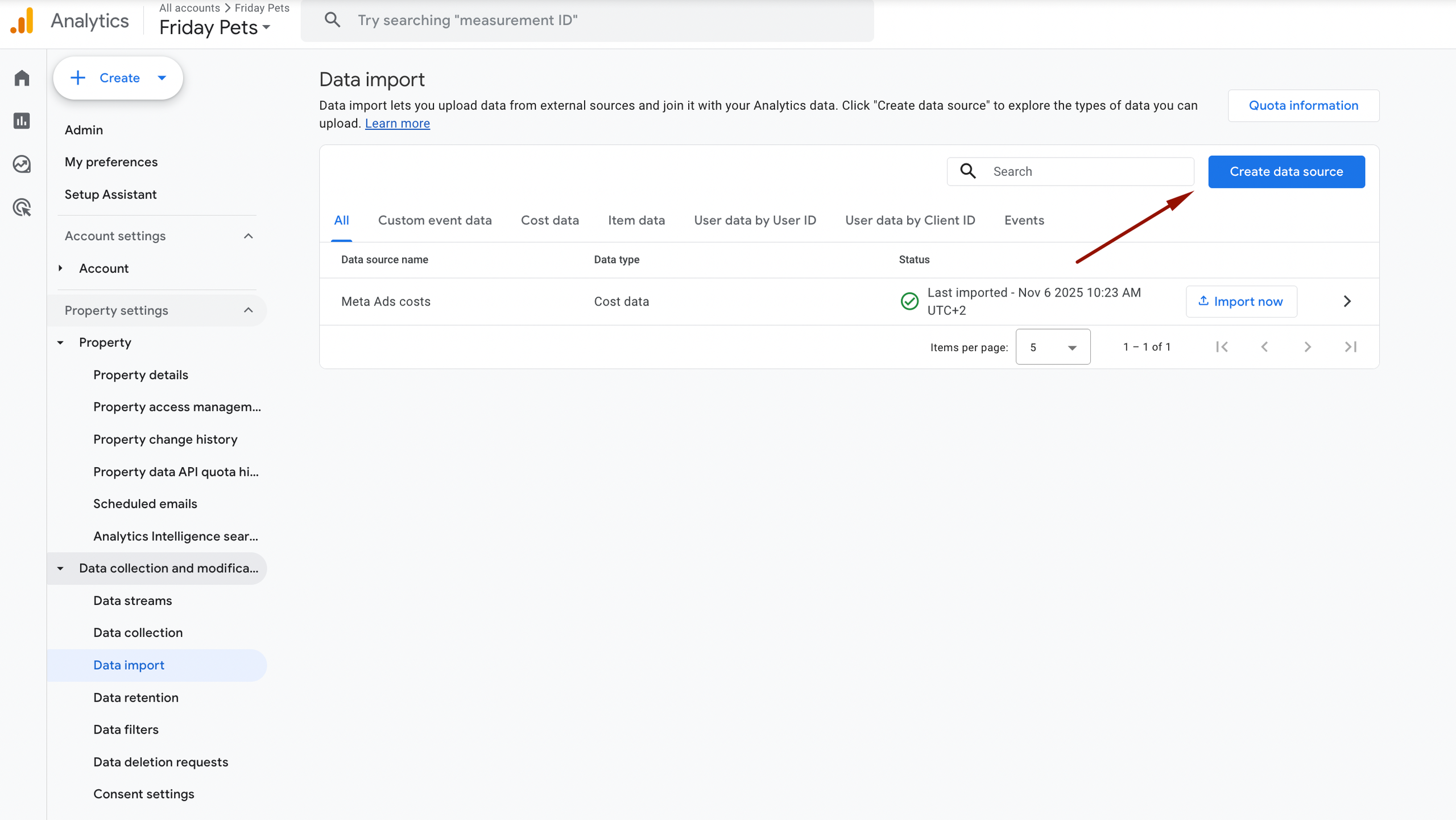
1. Go to GA4 → Admin → Data Import
The Meta cost connector doesn’t show up in regular reports - it’s inside the Admin panel.
Path: Admin → Property → Data Import
2. Create a new data source
Click “Create data source” and choose the import type.
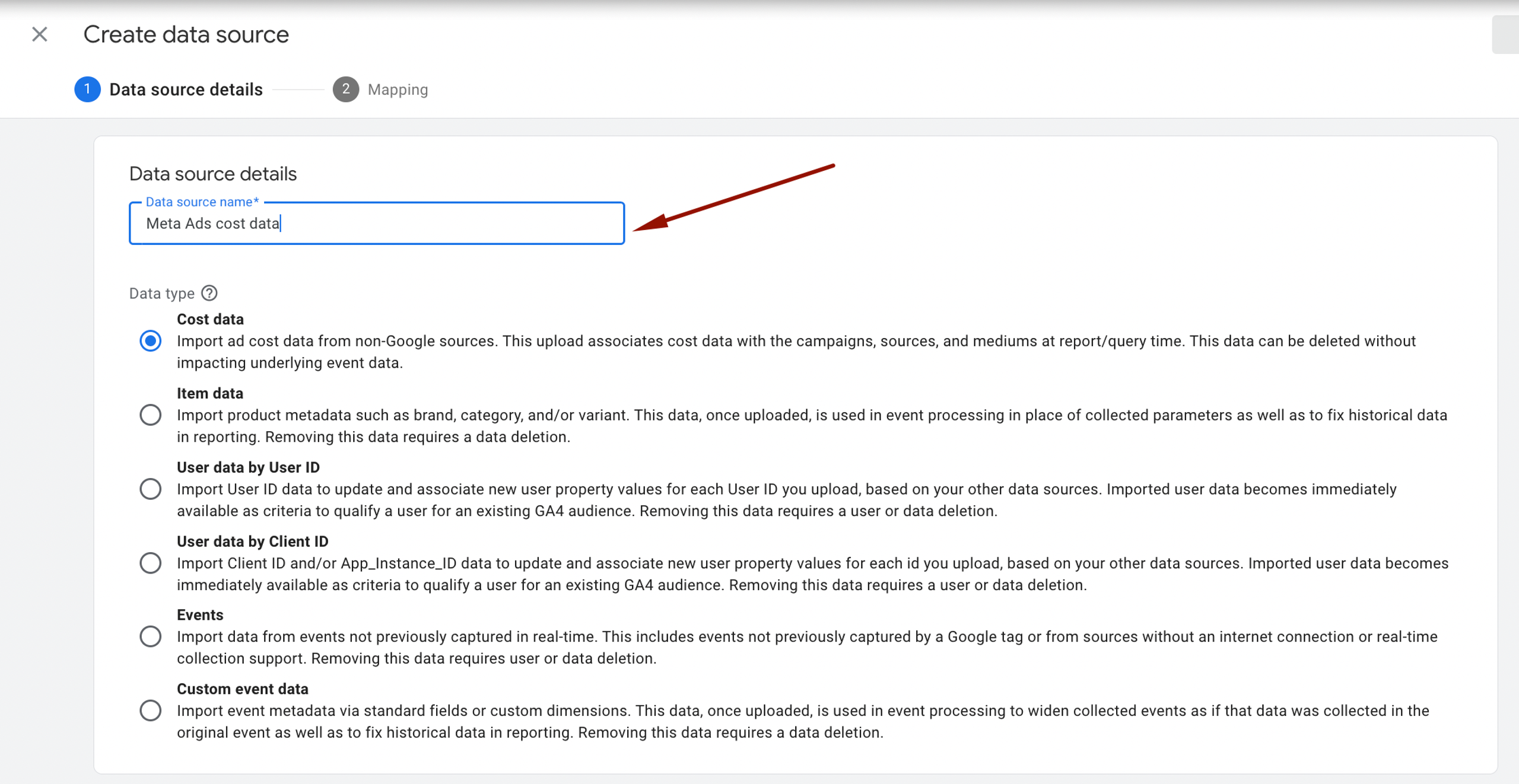
3. Name the import
Use a clear name so anyone managing the account knows what it’s for.
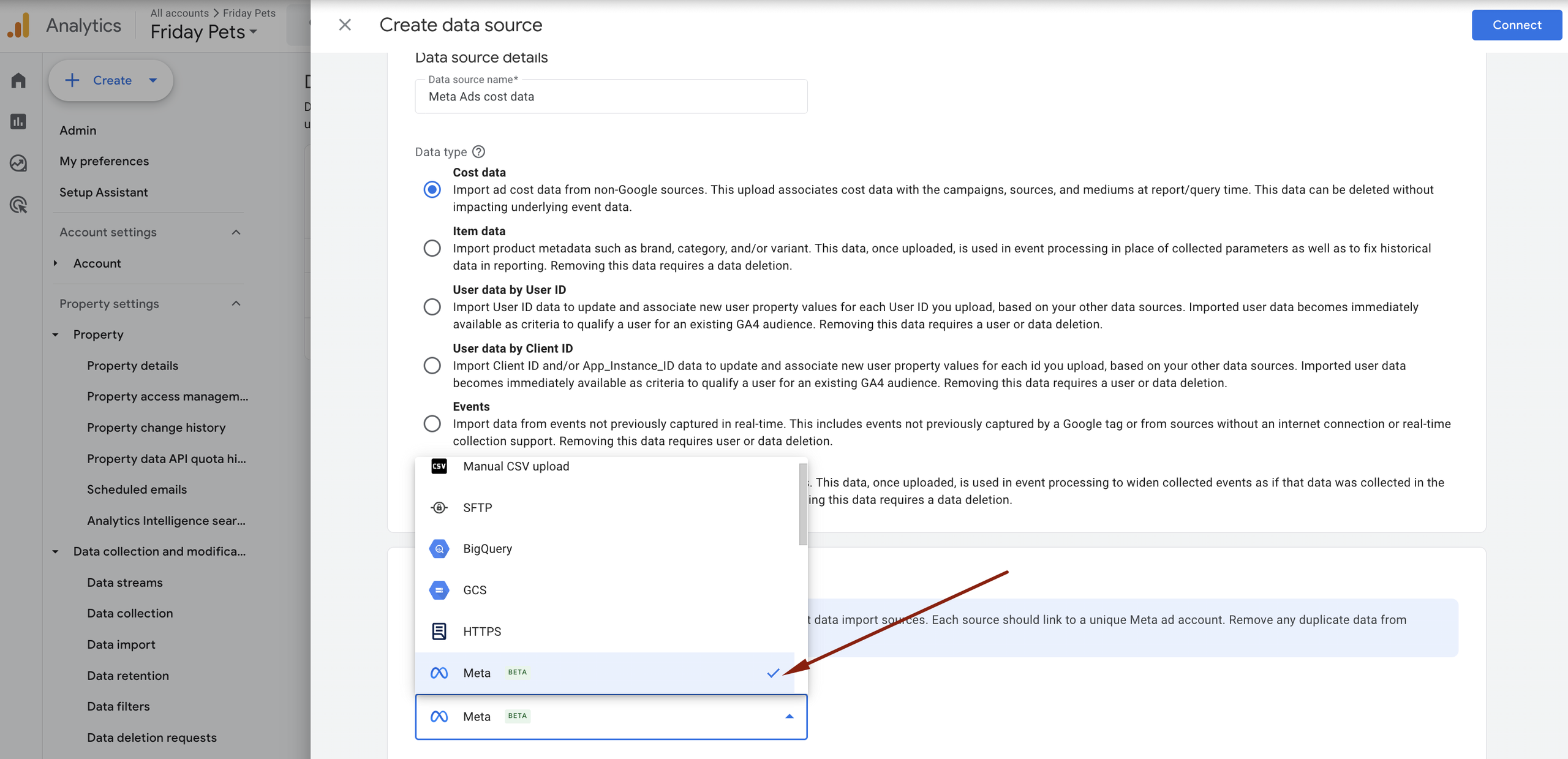
4. Select “Meta”
GA4 shows all available ad connectors. Pick Meta from the list.
5. Connect the account
Click “Connect” to start the authorization process.
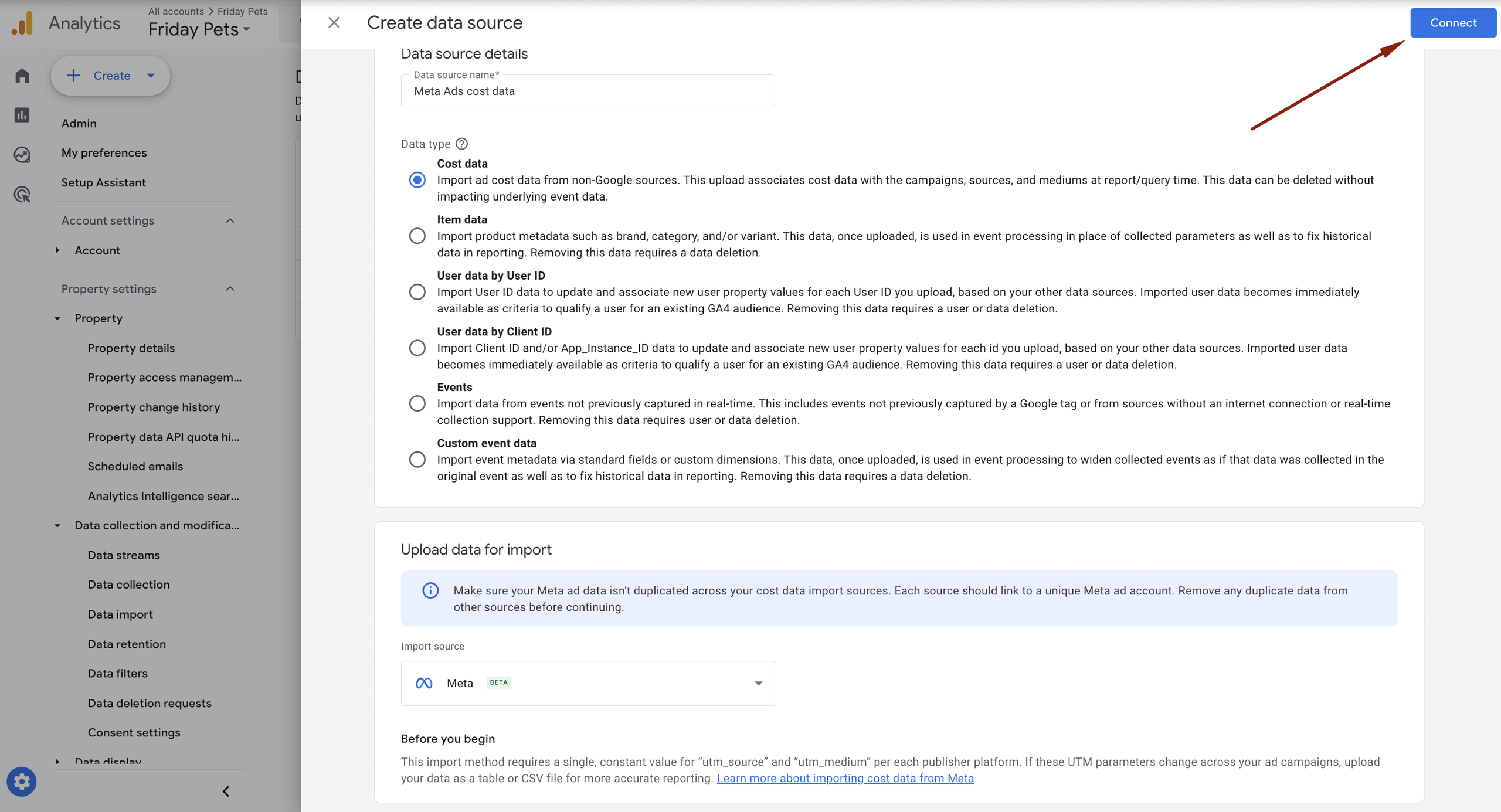
Important: the Meta user logging in must have Owner access to the ad account - any lower permission level will fail.
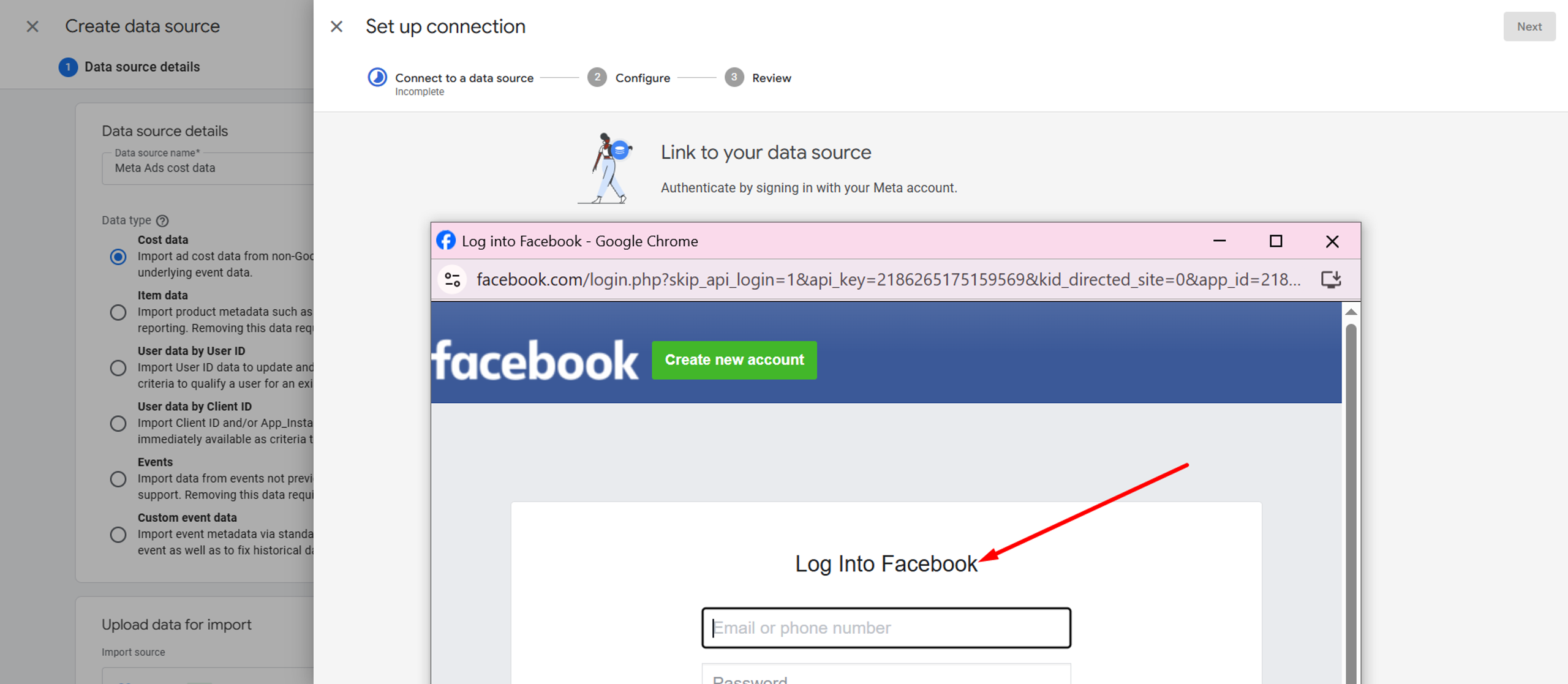
6. Log in through Meta Business Manager
A standard login window appears. Choose the ad account you want to sync.
7. Set up UTM mapping
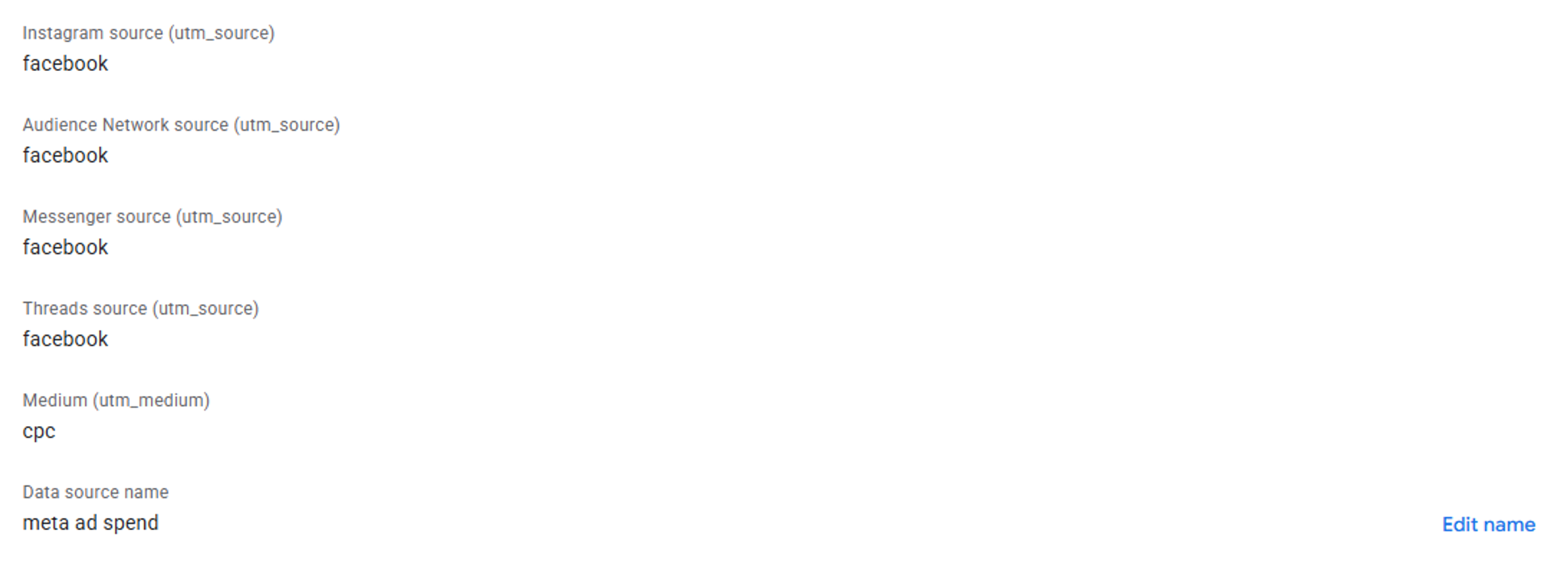
GA4 can only match cost to traffic if the UTM tags in Meta match the fields you enter here.
Clean UTMs = correct cost data
Messy UTMs = missing cost data
8. Choose how often GA4 should pull data

9. Save and activate
Once active, Meta spend starts showing directly inside GA4 reports.
Result
- Reporting is automated, Meta spend now appears directly in GA4 - no more switching between platforms
- ROAS and cost are visible in the same reports as traffic and conversions
Client’s Words


They fixed our tracking issues and set up GA4 perfectly. Now, our data is clean, our reports are accurate. True experts in analytics.
Read review on


